

Why is migration necessary?
As of January 31, 2022, the Docker Desktop licensing model has changed fundamentally. Since then, the prerequisite for using the free Docker Desktop version is that the company using it has fewer than 250 employees and earns less than USD 10 million (approx. €9,093,200) in one year. [1 ] These requirements can be met by small companies. Larger companies, however, must now decide whether to switch to a paid subscription or look for alternatives. A promising alternative for replacing Docker Desktop is Rancher Desktop. Rancher Desktop is an open source software for Mac, Windows and Linux. Rancher Desktop can be used to operate and administer Kubernetes and other container management platforms.
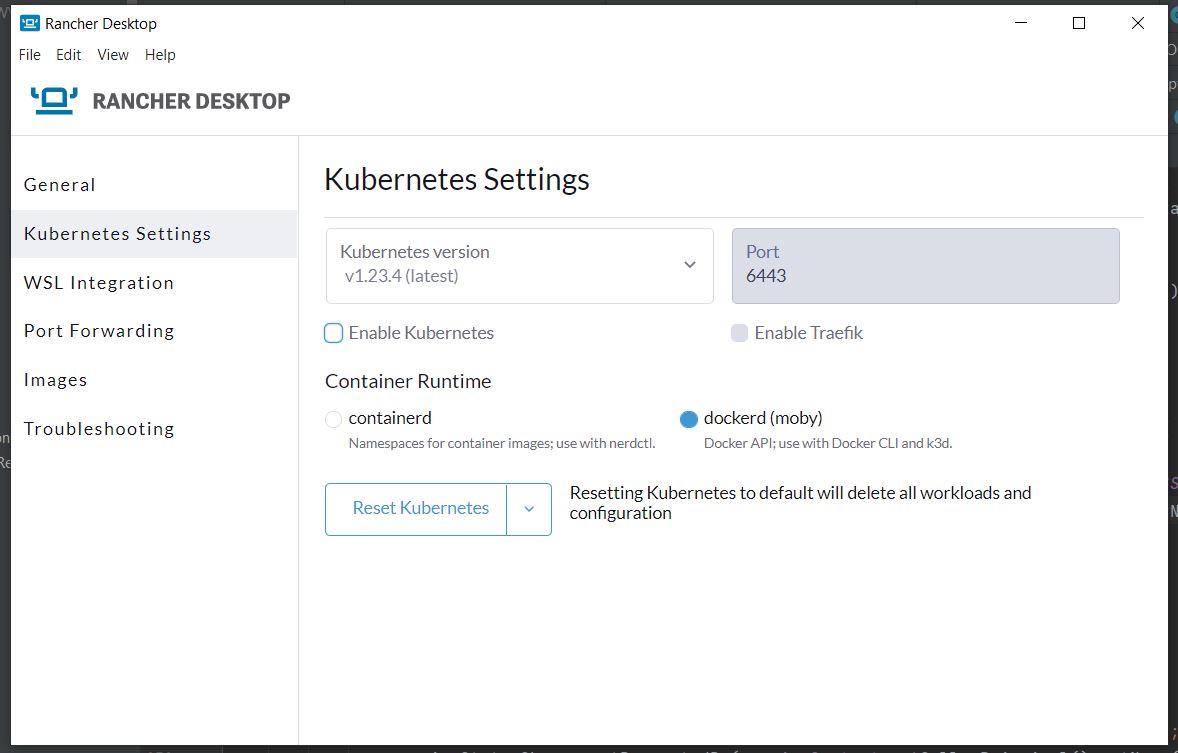
This blog post describes how a migration from Docker Desktop to Rancher Desktop is possible, what problems we had to solve and what needs to be considered.
Installing Rancher Desktop
First, Docker Desktop should be completely removed from the development computer to prevent potential configuration problems. Rancher Desktop can then be installed on the official website can be downloaded from Rancher. The images can be built, uploaded, downloaded and operated using dockerd or containerd. [ 2 ]
When migrating from Docker Desktop to Rancher, dockerd should be used as the container runtime, as the existing docker-compose configurations can be reused there more easily and without major modifications. Our tests with containerd have shown that major changes to the setup are necessary with this container runtime. For example, when starting a container, an attempt was made to load the corresponding image from the Docker registry instead of using the locally built image.
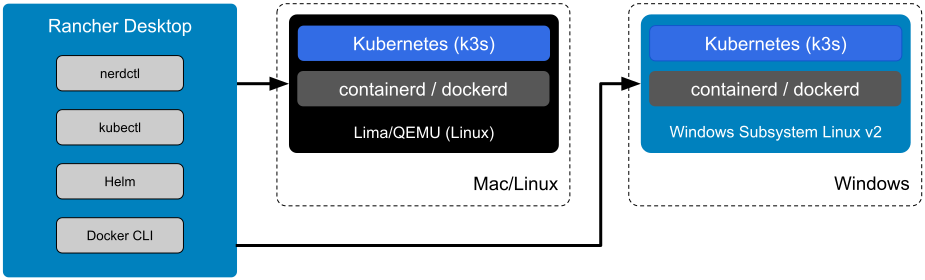
Docker Credential Helper
The installation of the Docker Credential Helper is required to enter the credentials for logging into the Docker Registry (executing the command docker login) securely. Due to the integration of the WSL in Windows, the Windows version of the Docker Credential Helper can be installed and used directly in WSL2. Executing the following commands downloads wincred.exe and sets the corresponding authorizations:
# Finds the latest version
$ wincred_version=$(curl -fsSL -o /dev/null -w "%{url_effective}" https://github.com/docker/docker-credential-helpers/releases/latest | xargs basename)
# Downloads and extracts the .exe
$ sudo curl -fL \
"https://github.com/docker/docker-credential-helpers/releases/download/${wincred_version}/docker-credential-wincred-${wincred_version}-$(dpkg --print-architecture).zip" |
zcat | sudo tee /usr/local/bin/docker-credential-wincred.exe >/dev/null
# Assigns execution permission to it
$ sudo chmod +x /usr/local/bin/docker-credential-wincred.exe
The configuration of the Docker CLI must then be adapted so that the previously downloaded credential helper is used. To do this, the following entry must be made in the ~/.docker/config.json be added (if not already present):
{
"credsStore": "wincred.exe"
}
The functionality can be activated by executing the command docker login must be verified. If it did not work correctly, an error message will appear stating that the credentials are saved in plain text.
Docker-Compose
First, the existing docker-compose installation of Docker Desktop must be removed. To do this, the bin directory of the old installation should be removed from the "PATH" system variable.
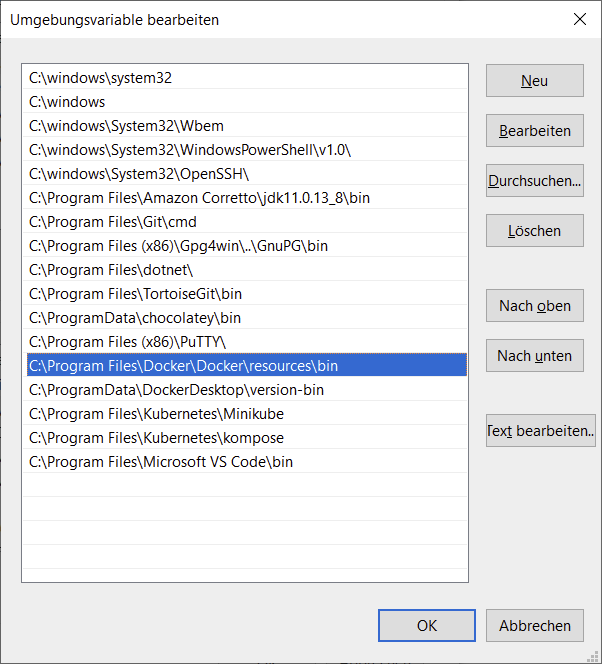
Subsequently, existing references in the WSL from the directory be deleted. To do this, remove the corresponding links and files in this directory. For example, the listing of the contents of the folder as follows:
lrwxrwxrwx 1 root root 80 Jan 5 11:00 docker-buildx -> /mnt/wsl/docker-desktop/cli-tools/usr/local/lib/docker/cli-plugins/docker-buildx
lrwxrwxrwx 1 root root 81 Jan 5 11:00 docker-compose -> /mnt/wsl/docker-desktop/cli-tools/usr/local/lib/docker/cli-plugins/docker-compose
lrwxrwxrwx 1 root root 78 Jan 5 11:00 docker-scan -> /mnt/wsl/docker-desktop/cli-tools/usr/local/lib/docker/cli-plugins/docker-scan
Installation in WSL2
Now you should check again whether all references to the docker-compose installation of Docker Desktop have really been removed. This can be done with the command
~$ which docker-compose
can be tested. If this command can no longer find docker-compose, everything has been successfully removed. Now the docker-compose binary from Github can be downloaded.
After downloading the corresponding binary, it should become docker-compose renamed and moved to the folder $HOME/.docker/cli-plugins be postponed.
Alternatively, the binary can also be copied to one of the following folders so that it can be used system-wide:
/usr/local/lib/docker/cli-pluginsOR/usr/local/libexec/docker/cli-plugins/usr/lib/docker/cli-pluginsOR/usr/libexec/docker/cli-plugins
Under certain circumstances, it may be necessary to save the downloaded binary with chmod +x executable. [ 3 ]
Testing the Rancher installation
To test whether everything has worked correctly, you can use this Example can be tested. If everything works as described without errors, the local setup of Rancher Desktop is complete and you can start working with Rancher Desktop.
Learn more about frontend development
Sources
[ 2 ] https://rancherdesktop.io/
[ 3 ] https://github.com/docker/compose