

In the beginning there was chaos
Do you know this too? You have a demanding day at work and suddenly you have a great idea. You keep it in your head and want to implement it later, but a meeting comes up in the meantime. After the meeting, you go for a coffee and the idea is forgotten. You also wanted to pour a technical debt into a ticket and go and see a colleague to discuss something. These to-dos pile up until at some point a few fall by the wayside because other things are more important. At the end of the day, you've got a lot done, but perhaps forgotten a few good ideas.
I felt the same way. But I no longer wanted to accept this and wanted to find a solution to the problem. So I first tried writing the to-dos on stickies and sticking them to the screen. However, with the change from working from home to working from home, this is not a practical solution. So I tried sticking the stickies in my notebook. Unfortunately, I then had the problem that I didn't always look in the book.
After a little online research, I finally found the perfect solution for me.
WeKan: Kanban Yourself!
Our entire project business revolves around Kanban boards. All the tasks we have to complete are nicely organized there and can be processed. So why don't we Kanbanize ourselves as well?
Now that the idea was there, it just had to be implemented. However, as I also wanted to create project-specific to-dos, public Kanban solutions such as Trello (free version) were not an option for me. During my research, I then came across WeKan.
WeKan is an open source Kanban board that can be hosted locally. As soon as you have set up the hosting, you can use it conveniently via the browser. This has the advantage that you simply have to set a bookmark in the browser and then you can always access it.
Using WeKan is very simple and straightforward. First, you set up a board for your tasks:
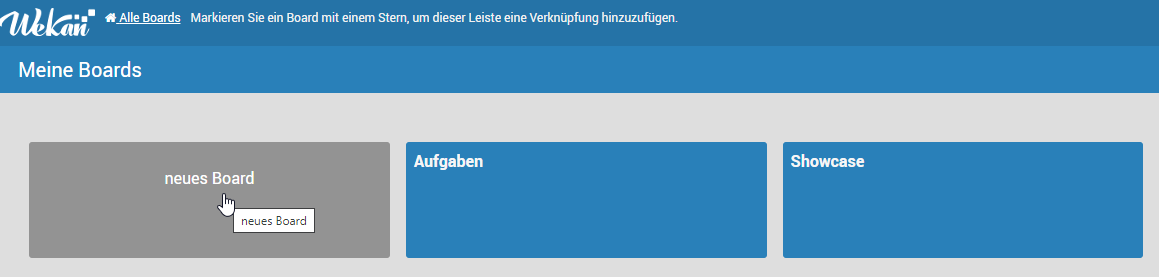
If you click on "New board", a window opens in which you can enter the desired name of the board. Then click on "Create" to create the board.
Next, you can add lists.
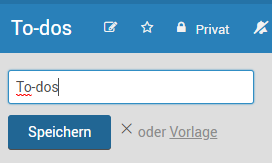
I recommend creating three lists "To-do", "In progress" and "Done":
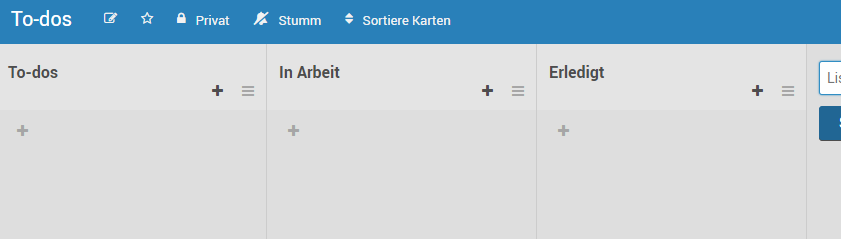
As soon as you have set up WeKan as described above, you can get started. With the "+" symbol, you can enter everything that is currently pending in the to-do list:
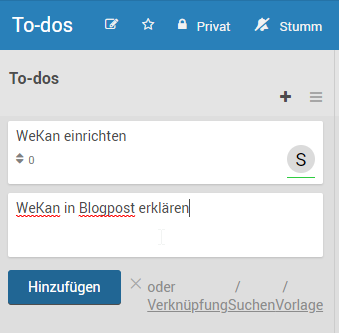
The to-do can be added by clicking on "Add". Additional fields can also be filled in afterwards by clicking on the to-do:
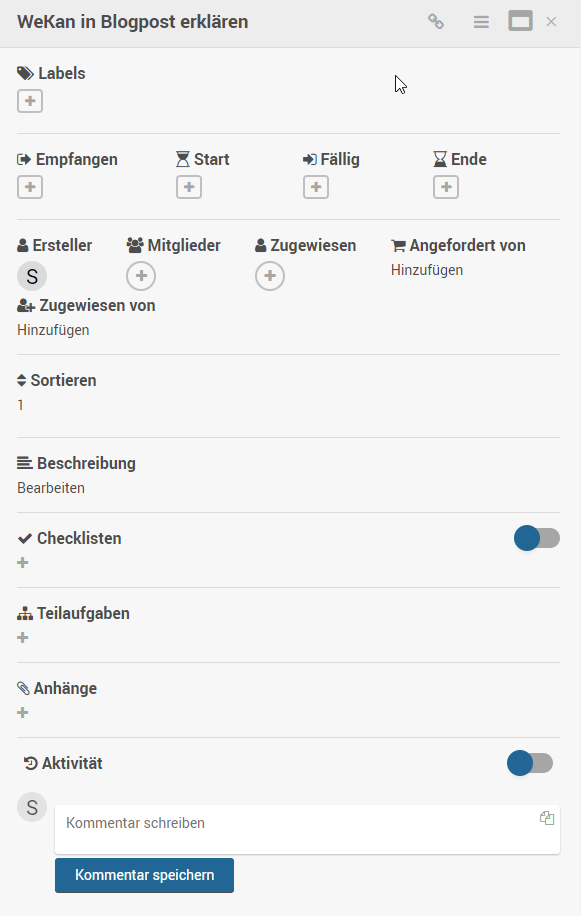
I really like to use the checklists to divide the to-do into smaller subtasks. The due date is also very helpful if the to-dos have a time horizon.
Install WeKan and host it locally
The setup is actually quite simple. Just follow the step-by-step instructions from WeKan: https://github.com/wekan/wekan/wiki/Offline
Autostart
Now that you have installed WeKan, you naturally want to be able to start it at any time. It therefore makes sense to start the application (the .bat file) automatically when the PC is started. To do this, you must first rename start-wekan.bat to start-wekan.cmd. Then create a shortcut and place it in the Autostart folder (%appdata%\Microsoft\Windows\Start Menu\Programs\Startup).
Backups
Since the Kanban Board is hosted locally, it is extremely important to create backups to avoid losing to-dos by mistake. It therefore makes sense to regularly create a backup of the database. As you have probably already noticed during installation, the data is stored in a MongoDB. MongoDB provides a few tools with which you can create a DB dump as a backup. These tools are available for download here: https://www.mongodb.com/try/download/database-tools
Now create a folder and put the tools in a subfolder there. Create a Git repository in the folder and add the tools folder to the .gitignore:
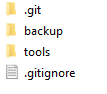
Then create a .bat file with the following content in the folder with the tools.
cd "path/to/backup/tools"
mongodump.exe -d=wekan -o ../backup
git add ...
git commit -m "Backup"
git push
The batch file is now able to create a backup and push it to a repository.
As a final step, you can create a Windows Scheduled Task that executes this batch regularly. To do this, follow the steps in this article: https://active-directory-wp.com/docs/Usage/How_to_add_a_cron_job_on_Windows/Scheduled_tasks_and_cron_jobs_on_Windows/index.html
I've been using WeKan for a few weeks now and my productivity has increased enormously. You can notice that far fewer tasks and ideas fall by the wayside. I really appreciate the fact that the tool can be used in the browser. With just one click, I can view and enter my to-dos directly in the current browser without having to wait. Setting to-dos is very easy and intuitive, so it's not a hurdle to set a task quickly. It is also always available as it runs locally on the PC. The backups via a Git repository also give me enough security. I never have to worry about losing my list in case the PC stops working.
How do you organize your tasks? Do you also use a Kanban board for this? If so, are you perhaps already using WeKan for this? I am very interested to hear about your experiences.