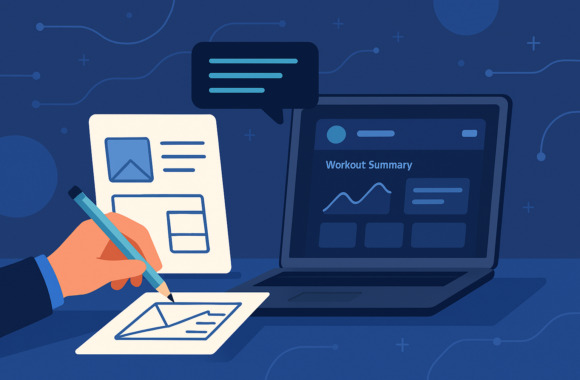
The Google Chrome DevTools are mostly only used by developers, as they provide support when creating a website or web app. However, they also offer a range of features that can be useful for everyone.
Screenshots of entire websites: No plugin required
There are many situations in which you need a screenshot of an entire website - be it for a presentation, for documentation or simply to share with colleagues. Some would take several screenshots and then merge them together. There are also some plugins that want to solve this problem, but Google Chrome has already integrated this function.
- Open the Google Chrome DevTools
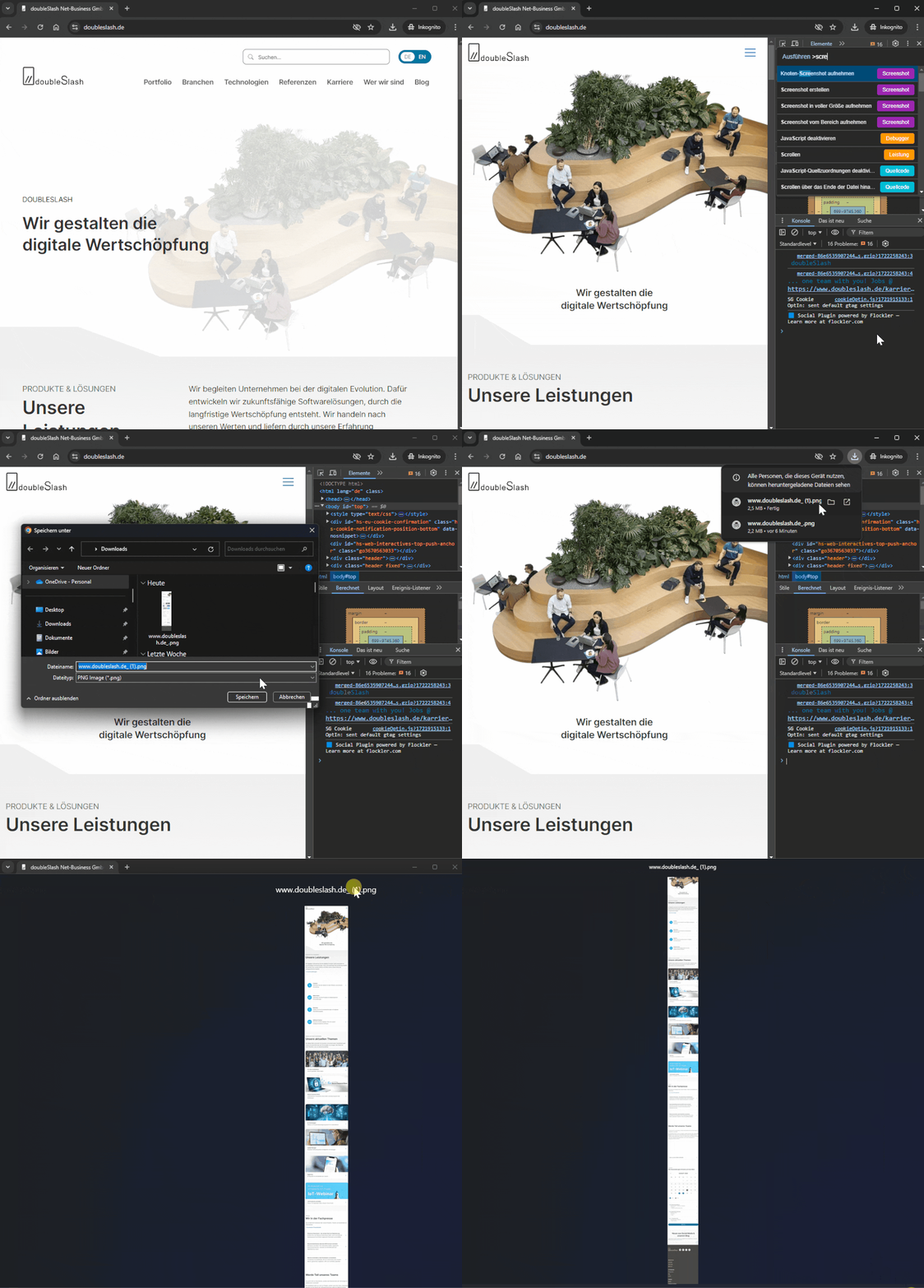
Open the website you want to take a screenshot of and pressF12orStrg + Umschalt + Ito open the DevTools. Alternatively, you can also right-click on the page and select "Explore". - Access to the "Create screenshot of the entire page" command
PressStrg + Umschalt + Pto open the command palette window. Enter "Screenshot" in the search bar and then select "Capture full-size screenshot". - Save your screenshot
Chrome automatically scrolls through the entire page and captures everything in a screenshot. Once the process is complete, a storage location for the screenshot can be selected.
Play videos at 16x speed
Sometimes you want to watch a video in less time, especially if it is a lengthy tutorial, presentation or lecture. YouTube offers an option for this that allows you to play videos at up to twice the speed. Some other video players do not offer the option to adjust the speed at all. Did you know that you can increase the playback speed of a video in Google Chrome up to 16 times faster - even with YouTube videos? It's easy to do with Chrome's integrated DevTools.
- Open the DevTools
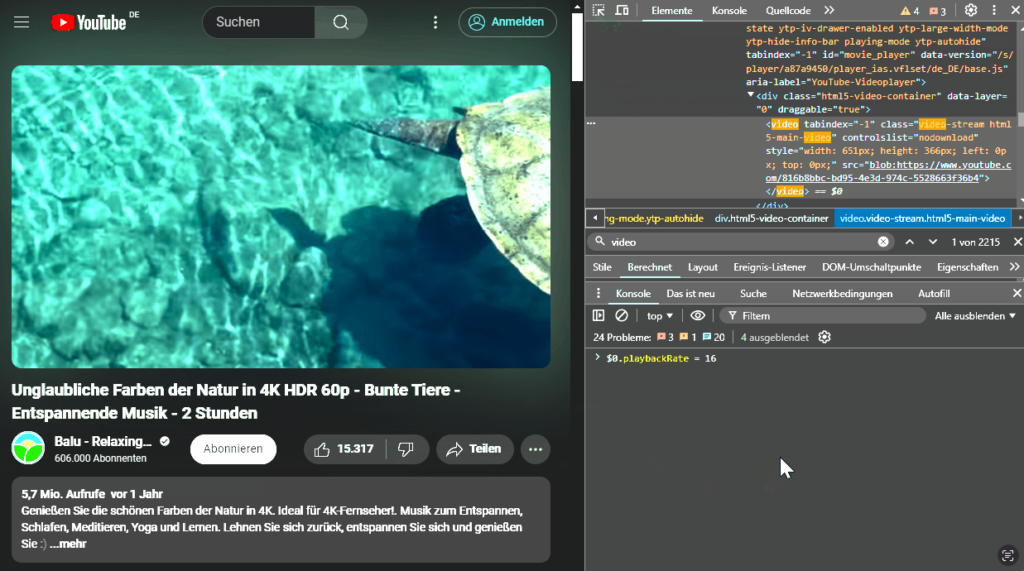
Start Google Chrome and open the website with the video you want to speed up. PressF12orStrg + Umschalt + Ito open the DevTools. Alternatively, you can also right-click on the page and select "Explore". - Navigate to the video element
Go to the "Elements" tab in the DevTools window and use the element finderStrg + Umschalten + Cand click directly on the video - Changing the playback speed
Open the console by clicking on the "Console" tab. Enter the following command to increase the playback speed by 16 times:$0.playbackRate = 16;PressEnterand the video is now played at 16x speed. - Adjust speed
Would you like to set a different speed? Simply replace the number in the code with the desired value. This number must be between 1 and 16.
Customize web content without programming
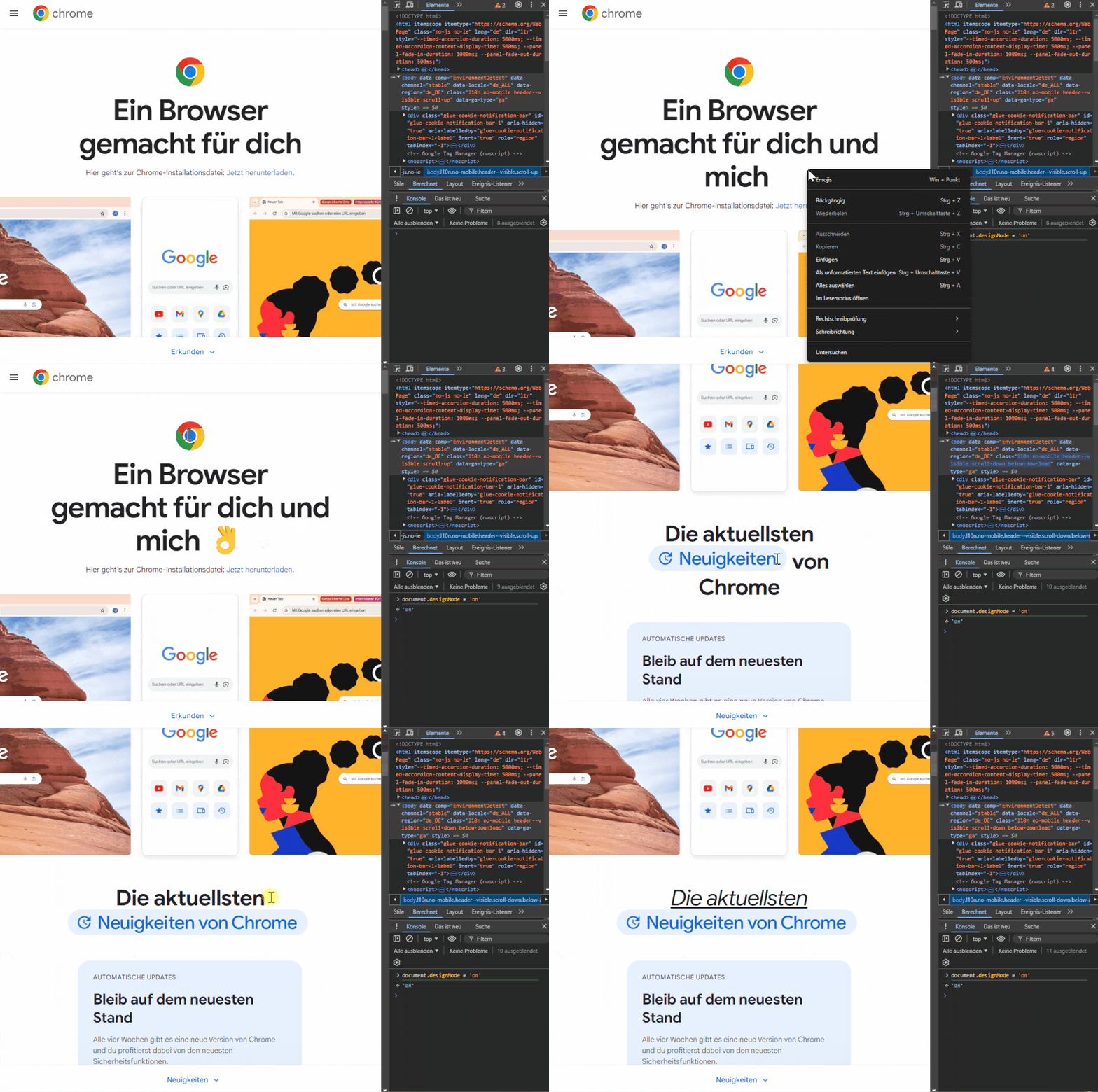
Have you ever visited a website and wished you could quickly and easily make changes to the content without having to dive into the code? With a simple trick in Google Chrome, you can do just that - without any coding knowledge. The key lies in a little-known function called document.designMode.
With document.designMode you can put the entire content of a website into an editable mode, similar to a word processing program. This allows you to change texts, move images or even add content without editing the actual code of the website. It should be noted that these changes are not persistent and disappear again after the website is reloaded. The feature is therefore suitable for quick prototypes, presentations or simply to see how a page could look with different content.
- Open the console in Google Chrome
Visit the website you want to edit and open the DevTools withF12orStrg + Umschalt + I. Then switch to the "Console" tab. - Activate the design mode
Enter the following command in the consoledocument.designMode = 'on';and pressEnter: - Now you can edit text fields, headings and other content directly on the website as if it were a document.
- Deactivate the design mode
When you are finished, you can switch off the editing mode again by pressingdocument.designMode = 'off';in the console.